Smart typing
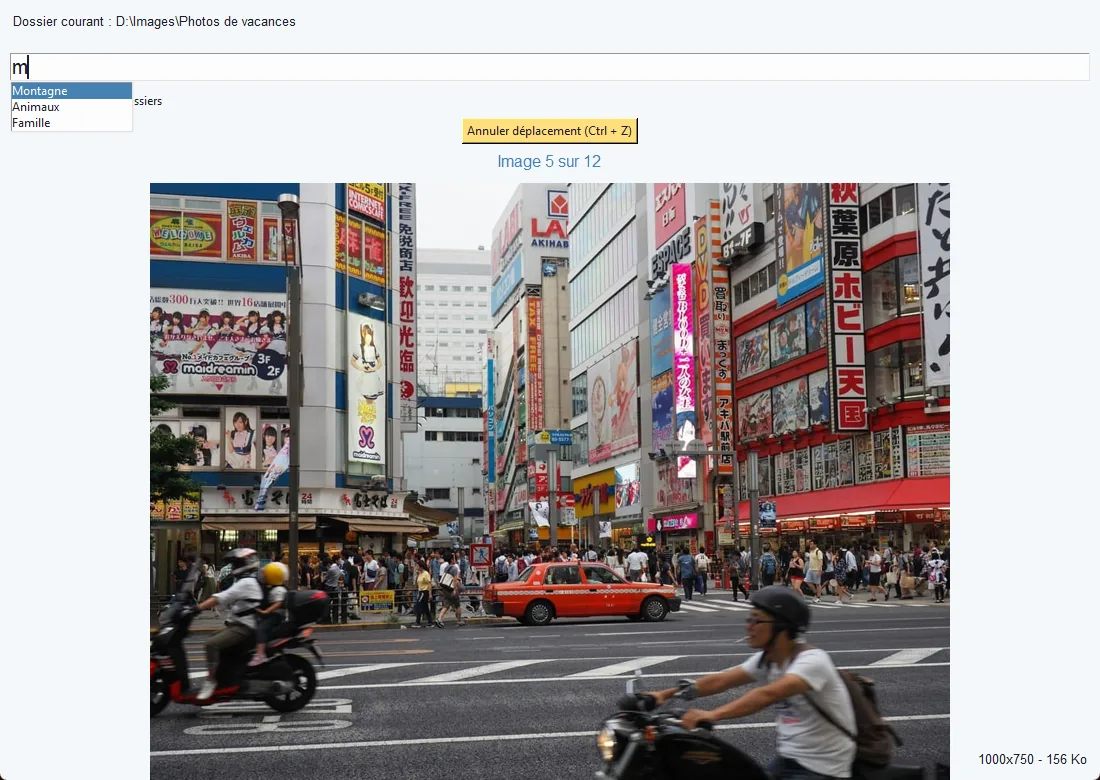
Folders appear as you type, those starting with your letters first. Tick “Include subfolders” to reach “City/Rome”.

Z PicSort · Windows app
Type three letters, press Enter: the photo is filed. Z PicSort suggests your folders as you type, never deletes anything and undoes everything with Ctrl + Z.
How it works
Pick the folder that holds your photos and your destination folders. Photos are shown one at a time.
Matching folders show up right away. Several words, in any order: “par ci” finds “City/Paris”.
The photo goes into the folder and the next one appears. Folder missing? Shift + Enter creates it.

All sorted!
Image 1 of 8
Works just like the app, right in your browser. No photo is actually moved.
↑ ↓ select · Enter file
Shift + Enter create folder · Ctrl + Z undo
Features
Folders appear as you type, those starting with your letters first. Tick “Include subfolders” to reach “City/Rome”.
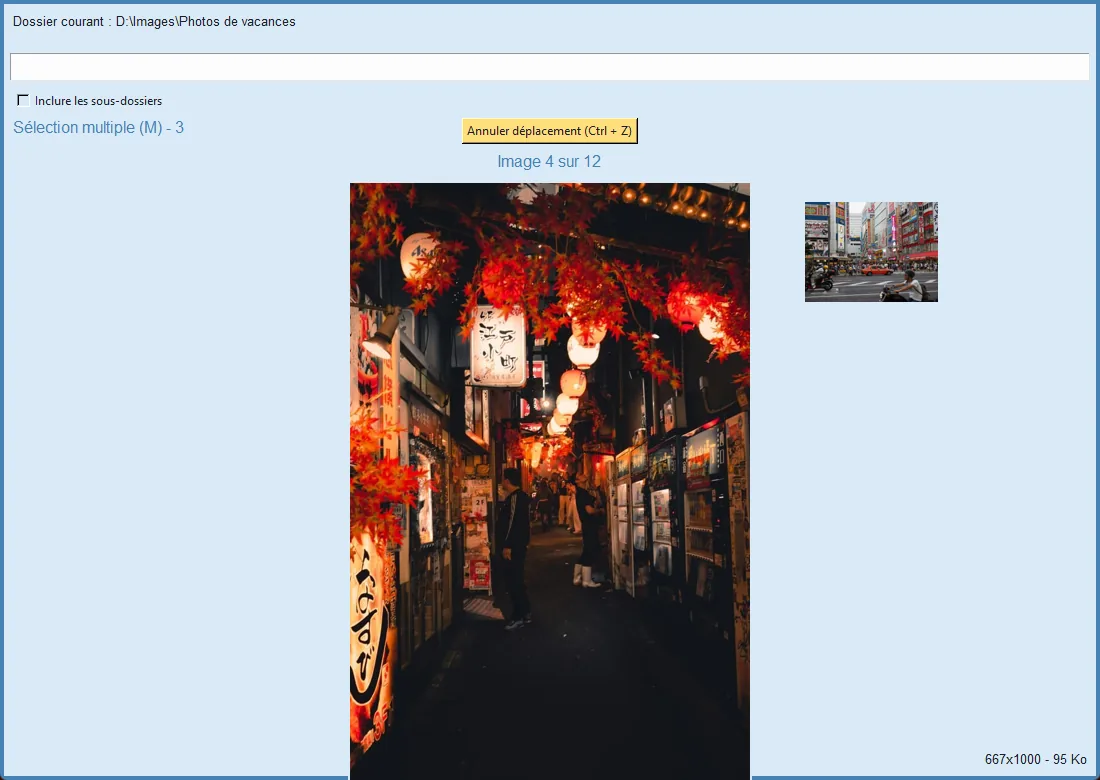
Ctrl + M, then move on with the right arrow: each photo you browse joins the selection. One key files the whole batch.
Delete sends the photo to a ZPS-Bin folder, not the recycle bin. You empty that folder yourself, when you are sure.
Ctrl + Z puts the last photo back, and even a whole multiple selection in one go.
A file with the same name already sits in the folder? The photo is renamed “photo (1).jpg” and you are told.
JPG, PNG, GIF, WebP, BMP and iPhone HEIC, with nothing to install. Photos show the right way up, GIFs are animated.
Unsure about a photo? Ctrl + T sets it aside in ZPS-SortMe and you carry on.
Sort a “To sort” folder into the folders next to it, without gathering everything in one place.
Link your favourite folders to keys 1 to 9, then Ctrl + 1 files the photo without typing. Works on AZERTY keyboards too.
Multiple selection
The background turns blue and a counter shows how many photos are selected. Go back to remove some.
Shortcuts
ZPS-BinZPS-SortMe)A single .exe file to run. Nothing to install, neither Python nor any library.
Every photo is moved, never erased or overwritten.
.jpg .jpeg .png .gif .bmp .webp .heic .heif
The mouse stays optional from start to finish.
Download
Free. Download the file, double-click it: you are ready.
Windows shows “Windows protected your PC”?
This is normal for an unsigned independent app. Click
“More info”, then “Run anyway”.
Frequently asked questions
No. Z PicSort only moves files. Even the Delete key moves the photo to the ZPS-Bin folder, which you delete yourself. An existing file is never overwritten, and Ctrl + Z undoes moves as long as the app is open.
No. The .exe file contains everything it needs, including HEIC support. You can run it from your Downloads folder or from a USB stick.
Put the photos to sort and your destination folders in the same folder, for example “Pictures”. You can also start from scratch: Shift + Enter creates folders as you go. To sort a “To sort” folder into its neighbours, use Options > Sort from a folder to sibling folders.
Yes. Use the top-row keys without holding Shift to get the digit: Ctrl + & 1 moves to folder no. 1. Z PicSort reads the key position, not the character, and ignores AltGr so typing @ or # still works. The numeric keypad works too. Details are in the online help.
No: Z PicSort is a Windows 10 and 11 app.
No. Your photos stay on your computer. At startup, the app only reads the number of the latest version published on this site to offer you an update. Without a connection, it works as usual.
When a new version comes out, Z PicSort tells you at startup and opens this page. You can also use Help > Check for updates. Download the new version and delete the old .exe file: your settings are kept.