Optimized colors
A first pass computes the best 256-color palette for your video, a second pass applies it. Result: clean gradients instead of pixel mush.

Video to GIF · Windows app
Video to GIF turns your MP4, MOV, MKV, WebM videos and animated WebP into sharp, smooth GIFs. Free, no watermark, no size limit: everything happens on your PC.
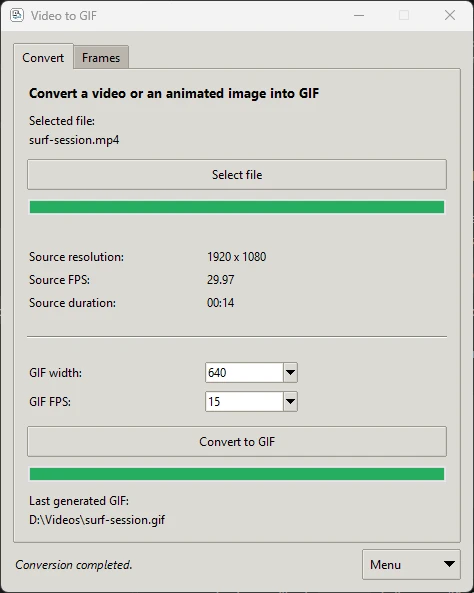
How it works
Click “Select file” and open a video or an animated image. Resolution, frames per second and duration show up right away.
Choose the GIF width in pixels and the number of frames per second. The height follows the video aspect ratio.
“Convert to GIF”: the GIF is saved next to the video, with the same name. An existing file is never overwritten.
Online converters make you upload your video to their servers, cap the file size and often add a watermark. Video to GIF does the same job right on your computer.
Features
A first pass computes the best 256-color palette for your video, a second pass applies it. Result: clean gradients instead of pixel mush.
MP4, MOV, AVI, MKV and WebM: phone videos, screen recordings, movie clips. The built-in FFmpeg engine reads almost every codec.
Convert animated WebP and APNG files (stickers, memes, web animations) into GIFs that work everywhere. Each frame duration is preserved.
A sticker on a transparent background stays transparent once converted. No more unexpected black background around your animations.
Split a video, GIF or WebP into PNG images, every frame or at the rate you choose, in a folder named after the file.
Assemble a folder of PNG, JPG, BMP or WebP images into an animated GIF. Images are sorted in natural order: image_2 comes before image_10.
No video uploaded, no account, no data collected. The app never connects to the Internet.
A GIF with the same name already exists? The new one becomes “video_1.gif”. Your previous files stay untouched.
A single .exe file. FFmpeg, Python and every library are already inside. It even runs from a USB stick.
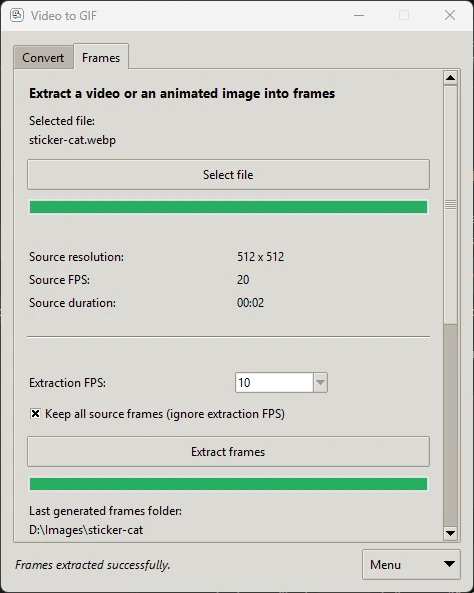
Frames tab
Extract every frame of a GIF, WebP or video, edit them in your favorite software, then assemble the folder back into a GIF.
Supported formats
| Action | Accepted files | Result |
|---|---|---|
| Video to GIF | MP4, MOV, AVI, MKV, WebM | Animated GIF, next to the video |
| Animated image to GIF | GIF, animated WebP, APNG | Resized GIF, transparency kept |
| Extract frames | MP4, MOV, AVI, MKV, WebM, GIF, WebP, APNG | Folder of PNG images named after the file |
| Images to GIF | Folder of PNG, JPG, JPEG, BMP, WebP | Animated GIF named after the folder |
Tips
| Use | Width | FPS |
|---|---|---|
| Reaction, meme, chat | 320 to 480 px | 10 to 12 |
| Social media, forums | 480 to 640 px | 12 to 15 |
| Tutorial, screen recording | 720 to 960 px | 8 to 10 |
| Documentation, README | 640 to 800 px | 10 |
| Smooth motion, sports | 480 px | 20 to 24 |
The size of a GIF mostly depends on three things: its width, its frames per second and its duration.
A single .exe file. FFmpeg and Python are already included.
Your GIFs are yours, with no logo or credit added.
.mp4 .mov .avi .mkv .webm .gif .webp .apng
No video ever leaves your computer.
Download
Free. Download the file, double-click it and you are ready.
Windows says “Windows protected your PC”?
This is normal for an unsigned independent app. Click “More info”, then “Run anyway”.
Frequently asked questions
Yes. No trial, no account, no ads and no watermark on your GIFs.
No. FFmpeg, Python and everything else are built into the .exe file. Download it, double-click it and you are ready. It also runs from a USB stick.
No. Every conversion happens on your computer, even offline. Unlike online converters, no file is ever sent to a server.
Open the .webp file with “Select file” in the Convert tab, then click “Convert to GIF”. Each frame duration and the transparency are preserved. APNG files work the same way.
Lower the width first (480 or 640 pixels is often enough), then the frames per second (10 to 15 FPS still looks smooth). A shorter video also gives a lighter GIF. See the recommended settings.
Yes. In the Frames tab, pick a GIF, WebP, APNG or video, tick “Keep all source frames” and click “Extract frames”. Each frame is saved as a PNG file in a folder named after the file.
Yes, for transparent GIF, WebP and APNG files. The GIF format only supports full transparency: semi-transparent edges become either opaque or transparent.
It contains the full FFmpeg, the reference video engine, with all its decoders. That is what lets it open almost any video without installing anything.
This is normal for an unsigned independent app. Click “More info”, then “Run anyway”.
No, Video to GIF is a Windows 10 and 11 (64-bit) application.